Unable to Install GB WhatsApp
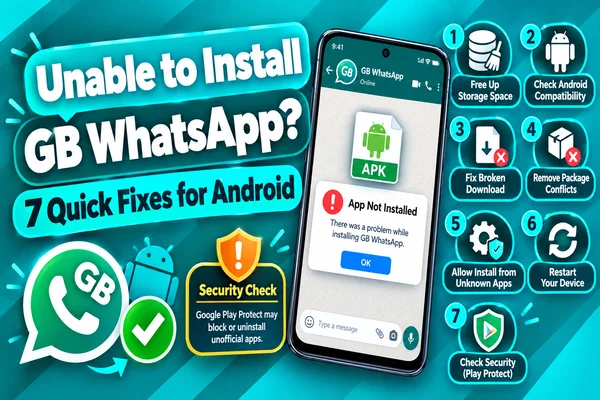
It’s easy to download GB WhatsApp, but there are times when Andriod throws up error messages such as “App not installed,” “Installation blocked,” or “Package appears to be invalid.” There can be various causes for these errors, including security configurations, lack of space, an outdated Android version, and so forth.
But there is something about, because almost all of these installation errors can be easily solved within a couple of minutes without any high-level technical skills. Let's have a look at the 7 most popular methods for solving installation issues with GB WhatsApp, find out why they occur, and learn how to fix them.
Fix 1 – Enable Unknown Sources
GB WhatsApp is not available on the Google Play Store. Therefore, the user will need to allow installation of apps from unknown sources on their phone.
Why This Problem Occurs
The default security settings of Android do not allow installation of apps outside of the Google Play Store. Otherwise, the user will receive one of the following messages:
- App not installed
- Installation blocked
- For your safety, your phone does not allow installing unknown apps.
How to Enable Unknown Sources
- Go to the Settings menu on the phone.
- Tap on Apps or Security (the names of these options may differ depending on the phone model).
- Tap on Special App Access or Install Unknown Apps.
- Select the browser or file manager used for downloading the APK file of the GB WhatsApp app.
- Select Allow from this source.
- Now try installing the APK file again.
Fix 2 – Clear Storage Space
Not having enough storage space is another common reason why GB WhatsApp won't install on an Android smartphone. Even if you manage to download the APK file successfully, it will require some additional storage for extraction and installation.
Check Available Storage
If you want to check how much free storage your phone has, you should:
- Launch Settings.
- Open Storage.
- See available internal storage space.
Ways to Free up Storage
Among the quick ways to clear storage space on your phone, there are the following:
- Deleting unnecessary apps.
- Deleting duplicate images and videos.
- Deleting downloaded files.
- Clearing the recycle bin (if available).
- Deleting temporary cache files.
- Having at least 1-2GB of available storage space is highly recommended.
Fix 3 – Redownload the APK File (corrupted download)
Sometimes the problem is not in your Android smartphone but in the downloaded APK file.
Symptoms of a Corrupted APK File
A corrupted file will result in the following errors:
- App not installed
- Problem parsing the package
- Invalid package
- Installation unexpectedly failed
Fixing This Issue
- Uninstall the APK file already on your device.
- Find a reputable site to get the GB WhatsApp APK file.
- Re-download the new APK using a reliable internet connection.
- Ensure that the size of the downloaded file is the same as the size of the available file on the download site.
- Run a scan on the APK file using any reputable virus scanner like VirusTotal.
Do not download GB WhatsApp APK from an unknown site containing multiple fake download buttons.
Fix 4 - Uninstall Conflicting WhatsApp Versions
Why won't GB WhatsApp install on your device? The answer is simple: there is another WhatsApp installed.
Reason Behind This
Installation problems occur because:
- The official WhatsApp version is installed.
- Some GB WhatsApp version is already installed.
- There are other modded WhatsApp versions, such as FM WhatsApp and YoWhatsApp, with the same package name.
- Previous installations have been incomplete.
Most likely, such situations will end up showing errors such as "App not installed" and "Package conflicts with an existing app".
How to Fix It
Use these steps:
- Back up the chats, if needed.
- Go to Settings > Apps.
- Locate any other WhatsApp or WhatsApp mod having the same package name.
- Remove the conflicting app.
- Reboot your device.
- Install the latest version of GB WhatsApp APK.
Fix 5 – Check Android Version Compatibility
Another reason why GB WhatsApp fails to install is that your Android version is incompatible with the APK file.
Check the Version of Android
To check your device version:
- Go to Settings.
- Tap About Phone.
- Select Android Version.
Check if the version of your Android system matches the minimum requirements given on the download page.
Compatibility Tips
- Use the latest version of GB WhatsApp for Android 14 and Android 15.
- For older phones, you need a version that is compatible with them.
- Always check the Android version supported by the APK before downloading.
- Try to keep your phone updated with the latest security updates.
When your phone runs a version of Android which is not supported, installing a compatible version of GB WhatsApp usually fixes the problem.
Fix 6 – Disable Play Protect Temporarily
Play Protect is an application created by Google to ensure the security of Android smartphones and check the downloaded apps for any security threats. Because GB WhatsApp is a third-party app, Play Protect may prevent the app from installing even when it is working correctly.
Why Play Protect Blocks GB WhatsApp
This application identifies modified apps as potentially dangerous because they are not downloaded through the Google Play Store.
How to Turn off Play Protect
- Go to the Google Play Store.
- Tap on your profile photo.
- Select Play Protect.
- Press the Settings button.
- Disable temporarily Scan apps with Play Protect.
- Install GB WhatsApp.
- Enable Play Protect once the installation is complete.
Fix 7 – Restart Device and Retry
A restart can solve installation issues by refreshing the package installer in Android.
Reasons for Restarting Device
- Remove temporary system cache files.
- Kill other apps running in the background.
- Refresh Android services.
- Free up system memory.
- Solve minor bugs while installing.
- Steps to follow
- Restart the device.
- Wait for the system to load properly.
- Check if there is enough free memory on your device.
- Open the APK file to install.
If the installation issue persists after trying all seven fixes, re-download a new copy of the GB WhatsApp APK from a trusted site and check the Android version requirement on your device.
Conclusion
The installation problems faced when trying to install GB WhatsApp can be sorted out by modifying the settings on your Android phone. Below are some of the most effective ways of solving the installation problem of the GB WhatsApp application: Unknown Sources, ensuring there is enough storage space, downloading a new APK file, uninstalling other WhatsApp apps, ensuring the phone is capable of using Android, turning off Play Protect temporarily, and rebooting the phone.
Ensure you are installing the latest version of GB WhatsApp on your Android-compatible device if the app has not been installed on the device.